VPhoneGaga Not Working? Start With the Problem You Have
When VPhoneGaga stops, it in most cases fails in one of a few known ways. Each way has its own fix. To try things at random is a waste of time, so this page works like a map. Find the problem that matches yours, try its fix, and use the link to the full guide when your problem has one.
Work through your part first. If the steps there do not help, the short list near the end of this page covers the steps that solve most of the rest.
It freezes while loading (stuck at 99%)
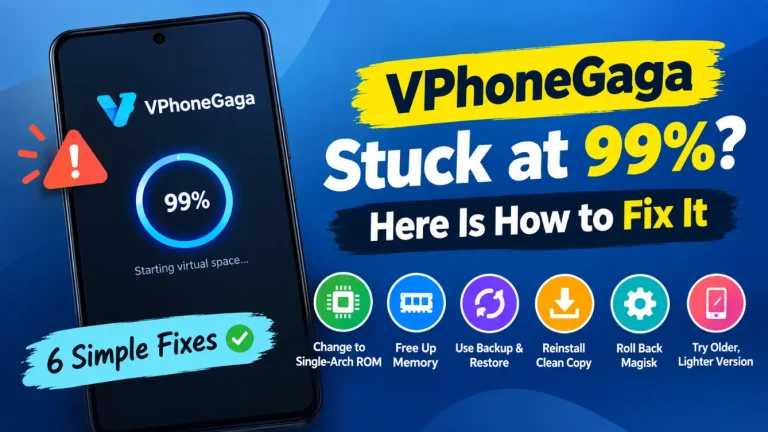
This is the most common fail of VPhoneGaga: the app opens, the bar climbs, and it sits at 99% for good. In most cases the virtual space cannot finish its build. Low free storage, a phone short on RAM, or a space left half built by a first launch that was cut short are the usual causes. This problem is so common that it has its own full guide with a step by step fix list: VPhoneGaga stuck at 99%? Try these fixes. Start there if this is your problem.
Google sign-in fails inside VPhoneGaga
When Google sign in loops or fails inside the space, the cause usually sits in the Google services inside the guest system or in an account check that cannot finish there. Our Google sign in not working guide gives the six fixes in the order to try them.
It crashes, closes, or shows a black screen
A crash or a black screen inside the space can come from the guest system you picked, a phone that is short on memory, or a build that does not suit your phone. Our crashing and black screen guide works through the fixes in order, from the quick checks to the guest system change.
The space restarts when Bluetooth connects
On some phones the virtual space restarts when a Bluetooth device connects or drops away, for example when a controller or a headset connects mid game. The developer has called this a known issue on some devices, in a reply on Google Play in January 2026. What to try: turn Bluetooth off, then start the space and your game, and see if the restarts stop. If they do, connect your Bluetooth device before you open the space, not while it runs. If the restarts carry on with Bluetooth off, the cause sits elsewhere, and the sections above are the place to work through.
Files will not import into the space
If the space opens and runs but a file import stalls, that is its own fault, apart from the loading faults above. It often turns on one permission: the app needs All files access on your phone. Our file import fix guide gives the fixes in order.
How fast should the space feel?
Set your hopes by test results, not by ads. In a hands on test, GoLogin measured about 60 frames per second while the space sat idle, and about 30 to 40 frames per second while scrolling. That is one tester result on one device, not a promise for every phone. A phone with little free memory will feel slower, and the space can close itself when memory runs out. That close is the phone protecting itself, not a fault in your setup.
A cloned app will not open at all
If one app says no inside VPhoneGaga while the rest work, the app itself is the likely cause. Some apps, banks in the main, and some games and streaming apps, spot virtual spaces and block them on purpose. A fresh clone is worth one try, and an update of the app is worth a second. But if the app blocks virtual spaces by design, no setting inside VPhoneGaga can change that. Run that one app on your phone itself, and keep VPhoneGaga for the apps that are glad to live inside it.
The problem started right after an update
If VPhoneGaga worked one day and broke after an update, the new build and your phone may not get along. The fixes above are worth a try first, the cache clear in the main. A step back to the build that worked is a fair move: our VPhoneGaga old versions page shows how to pick and install an older build in a safe way.
The short checklist that solves most cases
- Update VPhoneGaga and the problem app.
- Restart your phone.
- Free up a few GB of storage.
- Clear the cache, first the cache of the app, then the cache of VPhoneGaga.
- Remove the problem app and clone it again.
- Reinstall VPhoneGaga only as a last resort, and only after a backup, since it wipes the space.