VPhoneGaga File Import Not Working? Fix Imports Stuck at 99 Percent and Find Your Files
You tap import, the bar climbs to 99 percent, stops, and then the import fails. Or the import finishes and you still cannot find the file anywhere inside the space. Real users report both problems in the app reviews. One wrote that the import got to 99 percent, did not move, and then failed, five times in a row, regardless of app and regardless of file. Another wrote that the app does not show how or where to access files at all.
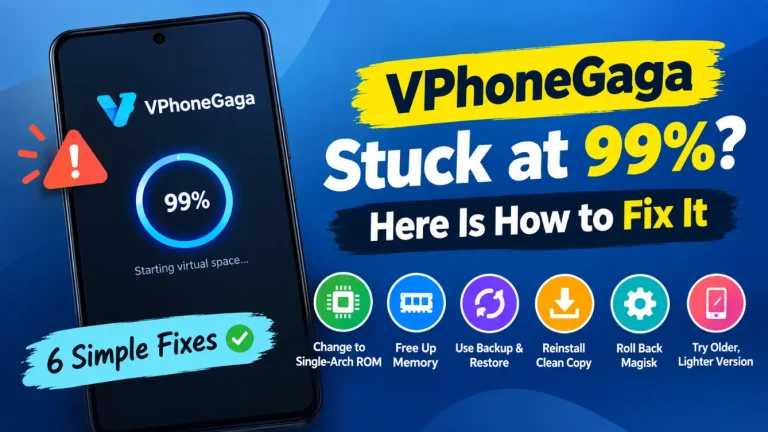
This page is only about files. It covers importing files into the space, opening files inside the space, moving files back out to your phone, and the safety warning that can block an import on the way. It is a different problem from the space itself freezing while it loads. If your space stops at 99 percent before it even opens, that is a loading problem with its own guide: VPhoneGaga stuck at 99 percent.
How file import and file access are meant to work
The space is a full Android system running inside your phone, with its own storage, separate from your phone storage. That one fact explains most file trouble. A file sitting on your phone is not just there when you open the space. The space cannot see it until you bring it in, and the app cannot reach your phone files until Android gives it the right to do so.
The developer has answered this point in plain words in a reply to a user review. File access needs one permission turned on for the app: All files access. After you turn it on, you restart the virtual machine. That setting and that restart sit behind most of the problems on this page, including imports that run almost to the end and then fail, files that seem to vanish, and the loop where the app keeps asking for permissions again and again.
If you take one thing from this page, take that. Turn on All files access for the app in your phone settings, then restart the space. Fix 1 below walks you through it.
Why an import stops at 99 percent
An import that dies near the end usually has one of four causes.
The permission is missing. This is the first thing the developer points to, and it is the step most users skip. Without All files access, the app cannot read your storage the way it needs to, and the copy stalls.
The file itself is not complete on your phone. If a download stopped early, the end of the file is simply not there. The import then fails near the end, because the end is what is missing.
Your phone is low on free storage. The space keeps its own copy of everything you import, and it needs room on the phone to hold that copy.
The app build is old. The developer change log includes a fix for slow loading when opening imported local files, so an old build can carry file faults that a newer build has already fixed.
The fixes, in the order to try them
Work down this list in order. Most readers will be done at Fix 1.
Fix 1: Turn on All files access, then restart the space
- Close the space and open Settings on your phone.
- Open Apps and find the app in the list.
- Open Permissions.
- Find the files permission and choose the option that allows access to all files. The exact words on screen change from one phone brand to the next, so look for the option with the words all files in it.
- Go back to the app and restart the virtual machine. If you cannot see a restart option, close the space fully and open it again.
- Try the import once more.
This is the fix the developer itself gives to users who cannot access files, in a Play Store reply from April 2026. Do this one before anything else on this page.
Fix 2: Force stop the app and clear its cache
- Open Settings, then Apps, then the app.
- Tap Force stop.
- Open Storage and tap Clear cache.
- Open the app again and try the import.
Clear the cache only. Leave Clear data alone, because the space and everything inside it live in the app data. Clearing the data can wipe the space you are trying to fix.
Fix 3: Check the file on your phone before you blame the space
- Find the file in your phone file manager.
- Check its size against the size the source page lists for it. If the sizes are far apart, the copy on your phone is not whole. Download it again.
- Try to open the file on the phone itself. If it will not open there, it will not import either. No fix on this page can save a broken file.
Fix 4: Free up storage on your phone
- Open Settings, then Storage, and look at how much free space you have.
- The copy inside the space takes about the same room as the file itself. Leave at least that much free, and more if the file is a large game.
- Delete or move large files you no longer need, then try the import again.
Fix 5: Update the app
The developer change log includes a fix for slow loading when opening imported local files, and newer builds carry the newer fixes. The current store version checked for this page is 5.2.1, from October 2026. If your build is older than that, update it and try the import again before you try anything harder.
Fix 6: Test the import with one small file
- Pick a small file, such as a photo or a short text file.
- Import it the same way you imported the file that failed.
- If the small file goes through, the import path works, and the problem sits with the big file. Go back to Fix 3 and Fix 4.
- If even the small file stops at 99 percent, the problem is the setup, not the file. Go back to Fix 1 and check the permission again.
Play Protect blocks the APK you imported
One setup video filmed by a user shows the whole sequence. A game APK import reaches 99 percent, and then Google Play Protect steps in and blocks the file inside the space.
Play Protect is the part of Android that scans apps and files for harmful behaviour. When it blocks a file, it is saying the file failed a safety check or is not recognised as safe. The same checks run inside the space, because the space is a real Android system.
The warning alone does not tell you if your file is truly bad. Play Protect flags many files that come from outside the Play Store simply because they come from outside the Play Store. That cuts both ways. The warning does not prove a file is dirty, and it does not prove a file is clean either. Judge the file, not the warning.
Ask four questions about the file in front of you:
- Where did it come from? A file from a source you know and trust is a different case from a file passed around in a random group or forum post.
- Do the file name, size and version match what the source page says? A mismatch is a bad sign.
- Once it opens, does it ask for far more than it needs? A simple game that wants your messages and contacts is a warning sign of its own.
- Can you honestly say you know what this file is? If you cannot vouch for it, do not install it.
Some sites tell you to switch Play Protect off, or to tap the option that installs the file anyway. Do not take that advice on a file you cannot vouch for. That option exists for people who built a file themselves or trust it fully. If the file fails your checks, delete it and get the app from a source you trust instead. Our full guide to judging files and permissions before you install is here: is VPhoneGaga safe to use.
Where your files live inside the space
Users write that the app does not seem to manage files at all. What is really going on is the split storage. Your phone storage and the space storage are two different places. The space holds its own copy of Android, with its own folders and its own Downloads folder, and your phone apps cannot see any of it.
Three things follow from that:
- A file you imported sits in the storage inside the space. Look for it with the file manager inside the space, in the same kind of place you would look on a new phone, such as the Downloads folder inside the space. It is not in the Downloads folder your phone shows you. The two folders share a name, and that is why files seem to vanish.
- A file that is only on your phone is invisible inside the space until you import it. That is normal. It is the separation working the way it is meant to work.
- A file inside the space is invisible to your phone apps for the same reason. To use it on the phone itself, you move it back out, which the next section covers.
If the space shows you no files at all, not even ones you know you imported, go back to Fix 1. Without the All files access permission, the app cannot read storage properly, and files that are really there can look as if they are gone.
Move files from your phone into the space
- Start the space and wait until it is fully open.
- Open the import option inside the app.
- Choose the file from your phone storage.
- Let the copy finish. Do not close the app while the bar is still moving.
- Open the file from inside the space and check it works there.
If the copy stalls near the end, work the fixes above in order, starting with the permission in Fix 1.
Move files from the space back to your phone
Getting a file out is the same idea in reverse, with one honest limit. What you can send out depends on the file and on the app that holds it inside the space.
- Open the file inside the space.
- Look for a share or export option in that app, and use it if it is offered.
- If there is no share or export option, the file stays inside the space. That is the split storage doing its job.
For a full copy of the space itself, with its apps and saves included, single files are the wrong tool. A backup moves the whole space at once: VPhoneGaga backup and restore.
When the problem is not the file
If the space will not open at all, or it crashes to a black screen, or it closes while you work, the file is not the problem and the fixes on this page will not help. Those problems have their own pages: the VPhoneGaga not working hub lists every fix guide on this site, and the VPhoneGaga crashing and black screen guide covers the crashes step by step.